
Connect Claude
Tell Claude what to post. It schedules it in Honkpost and shows you a preview card.
6 steps · about 2 minutes
You need
- A Claude account (free works)
- A Honkpost account with a channel connected
1
Copy the link and open Claude
On Connect AI, pick Claude, click Add it as a custom connector instead, then Copy link and open Claude. It opens Claude’s connector settings.
Open Connect AI2
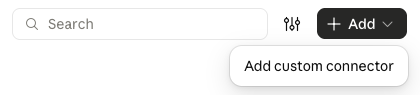
Add a custom connector
Click + Add, then Add custom connector.
3
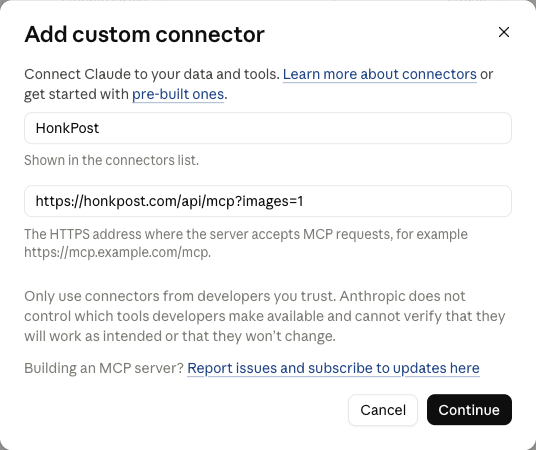
Paste the link
Name it Honkpost. Paste the link. Click Continue.
4
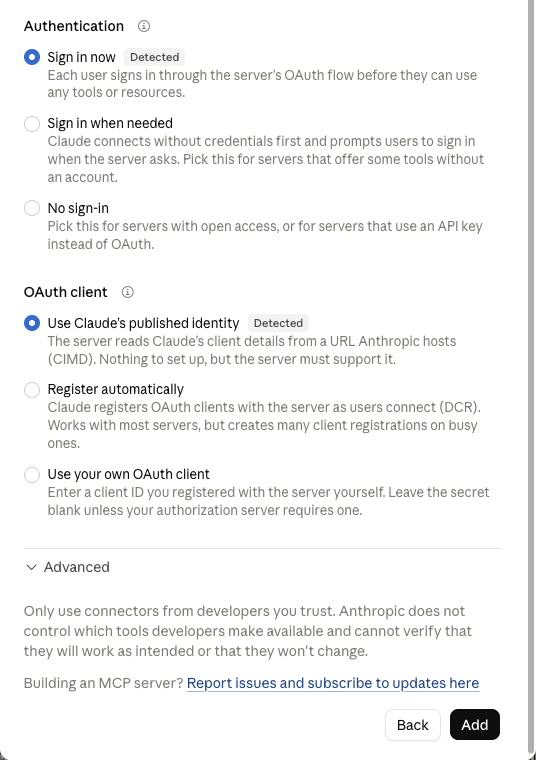
Click Add
Leave the settings as they are. Click Add.
5
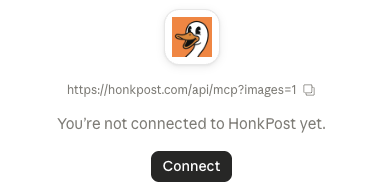
Connect
Click Connect.
6
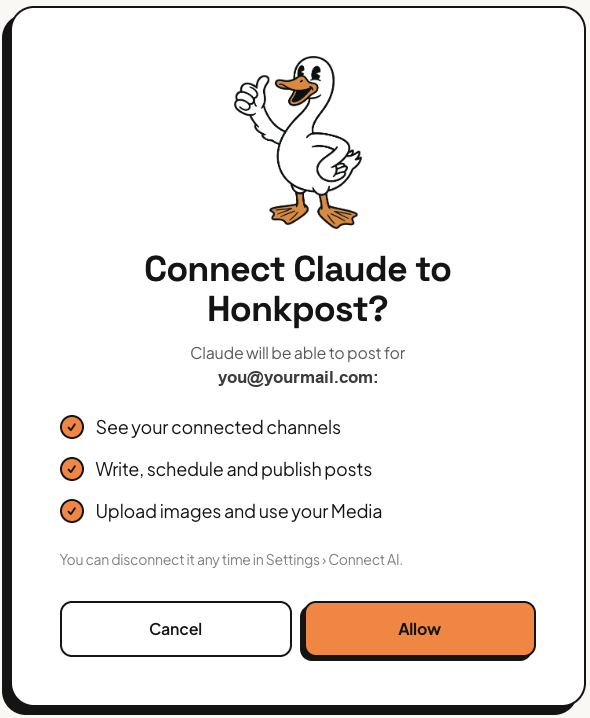
Allow
Click Allow. Then ask Claude: "what are my Honkpost channels?"
If it goes wrong
- Claude can’t make images. You added Honkpost from Claude’s connector directory. That one can’t. Add it as a custom connector with the link instead.
- Claude doesn’t see Honkpost. Start a new chat after connecting.
Good to know
- Easier: Honkpost is in Claude’s connector directory. In Claude, Settings → Connectors, search Honkpost. No link to paste, but no images that way.
- Free Claude plans allow one custom connector.